
 Email
Email SMS
SMS Whatsapp
 Web Push
 App Push
 Audience Sync for Ads
 Popups
 Channel A/B Testing
  Control groups Analysis
 Frequency Capping
 Funnel Analysis
 Cohort Analysis
 RFM Analysis
 Signup Forms
 Surveys
 NPS
NPS Landing pages personalization
  Website A/B Testing
  PWA/TWA
 Heatmaps
 Session Recording
 Wix
Wix Shopify
 Magento
 Woocommerce
 eCommerce D2C
  Mutual Funds
 Insurance
 Lending
  Recipes
  Knowledgebase
 Developer Docs
 Product Updates
 App Marketplace
 Academy
 Ebooks
 Case Studies
 Blog
Blog Templates
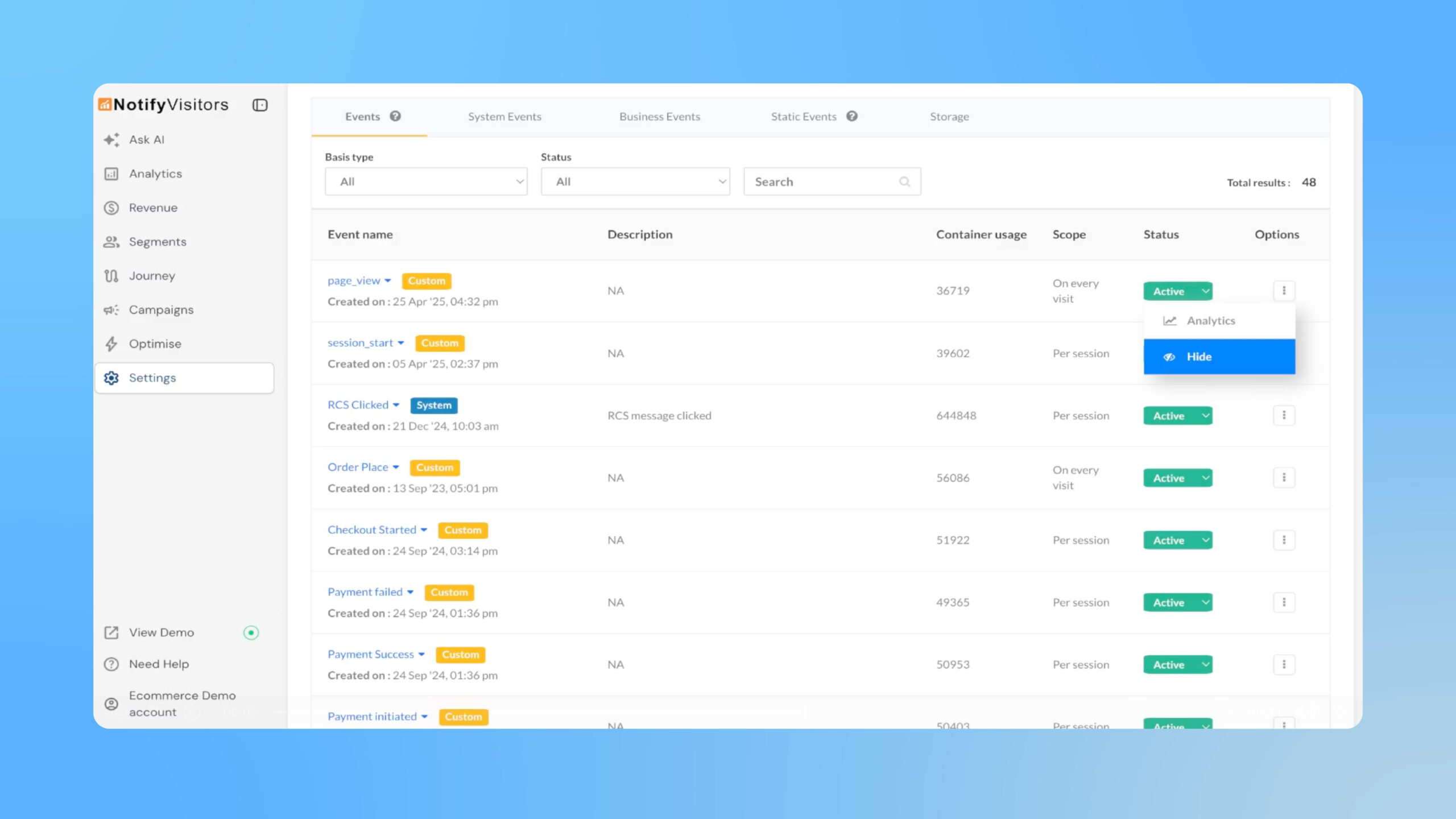
Over time, websites accumulate many custom events, many of which are rarely used. These unused events clutter reports and create long dropdowns, making it harder and slower to select the right events when building segments, journeys, or campaigns, and increasing the risk of errors.
The Hide feature solves this by removing unused events from the Events analytics panel and other reports while preserving data integrity. Hidden events continue to be captured and remain active in any existing segments, journeys, or other tools that use them. In event selection dropdowns, these events are not removed; instead, they appear grouped at the bottom under a Hidden events section, keeping the list clean while ensuring access when needed.
Where to find it
Go to Settings → Events, click the three-dot menu next to an event, and select Hide. To restore visibility, follow the same steps and choose Unhide.
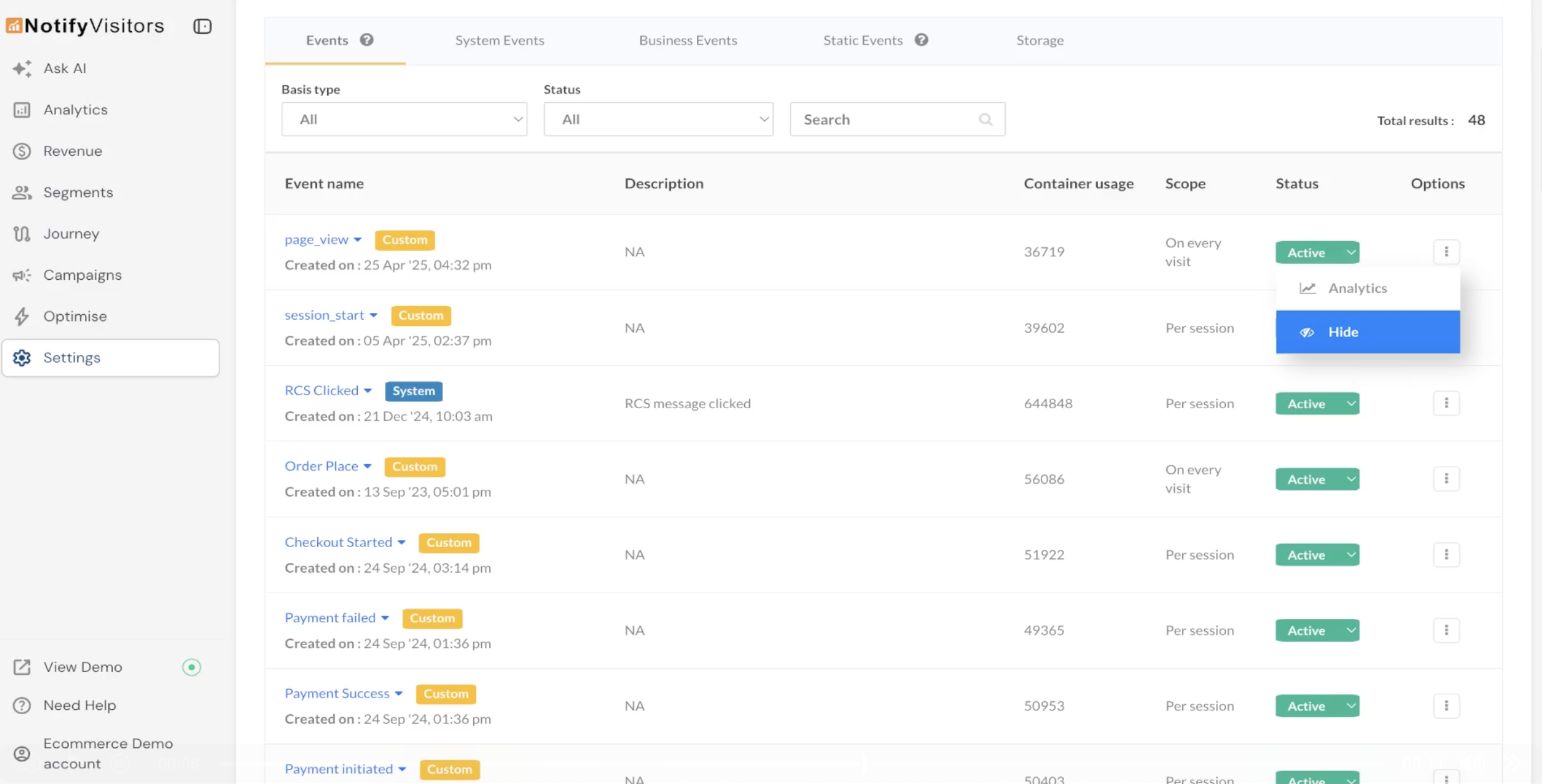
Hidden events are clearly labeled and grouped at the bottom of event dropdowns, so they’re still accessible when needed. This simple housekeeping feature keeps event lists compact and speeds up campaign and segment creation.
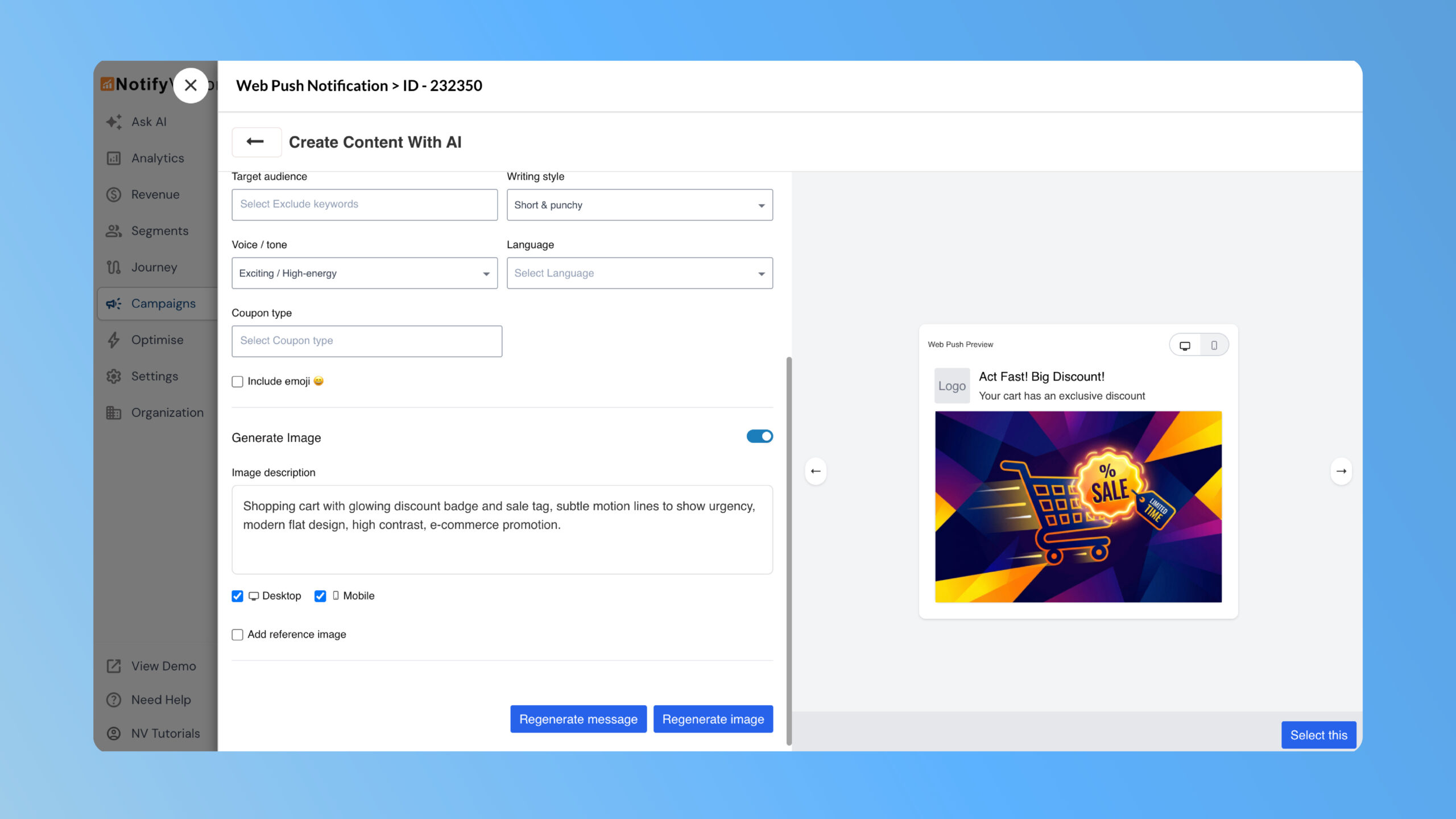
NVecta now lets you generate push notification copy and images using AI directly inside the Push editor. Create multiple text Read more
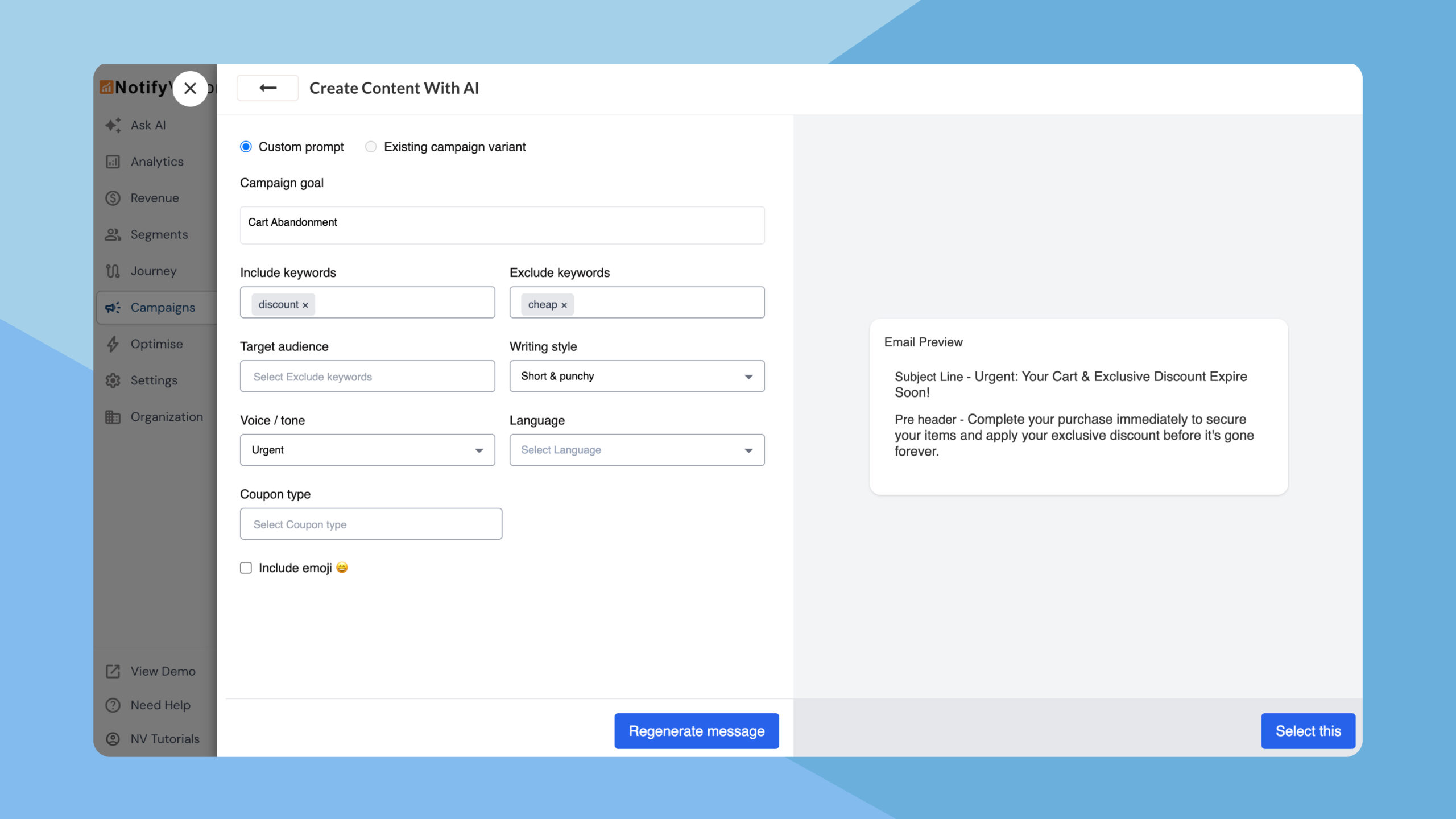
NVecta now uses AI across the entire email creation flow, enabling teams to generate subject lines, preheaders, and complete email Read more
